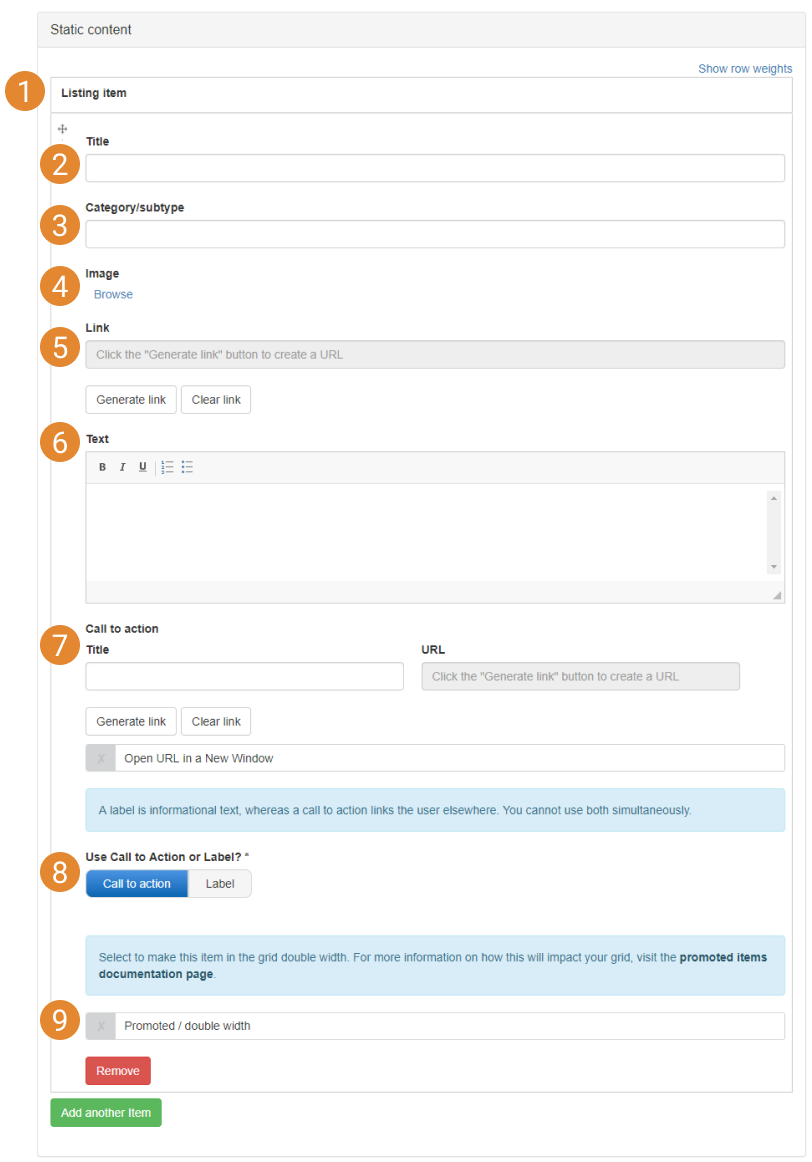



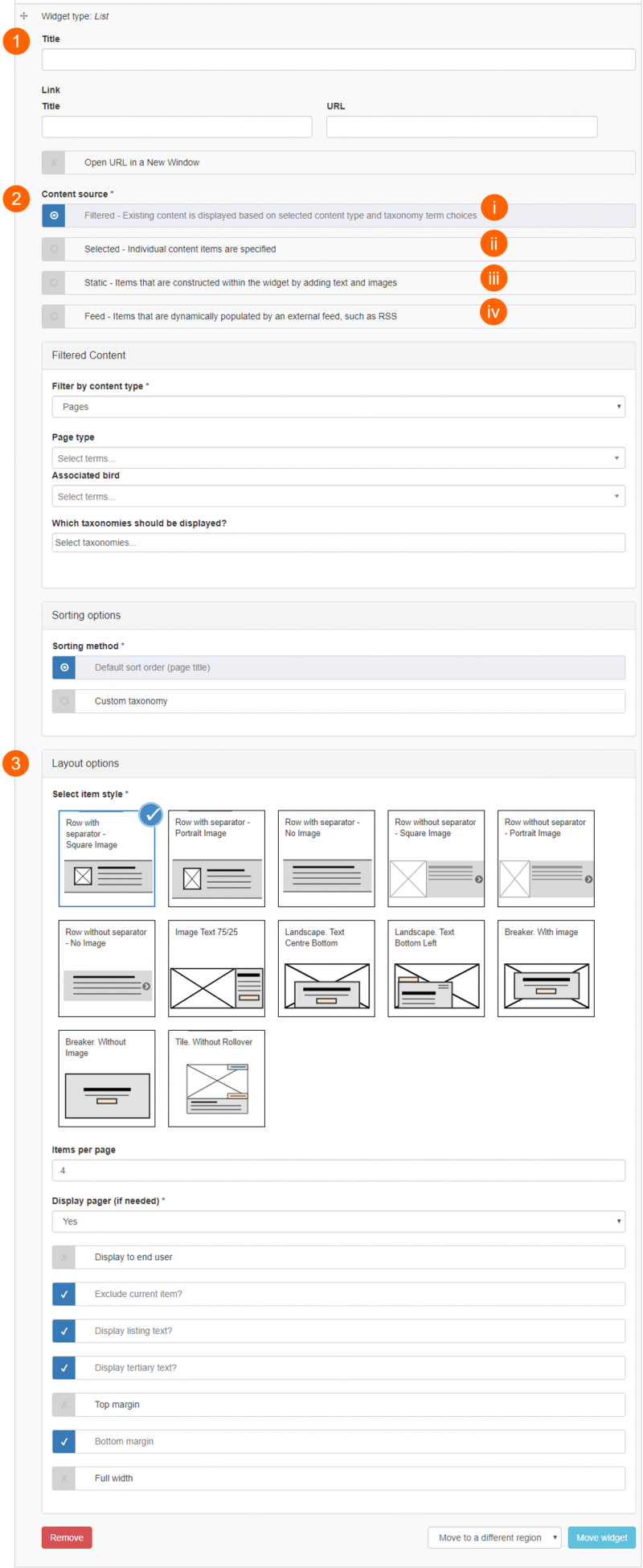
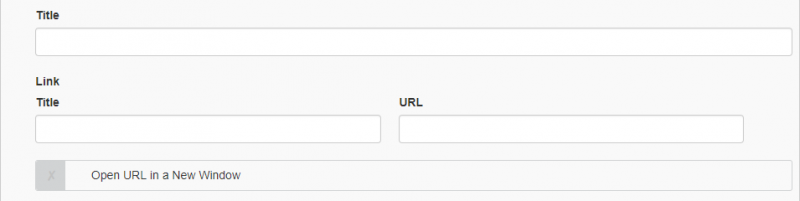
Content filtering allows Grid listing, List listing, Carousel, and Slideshow advanced widgets to display items automatically based on Content type and subtype, associated Taxonomy terms, or a combination of these.
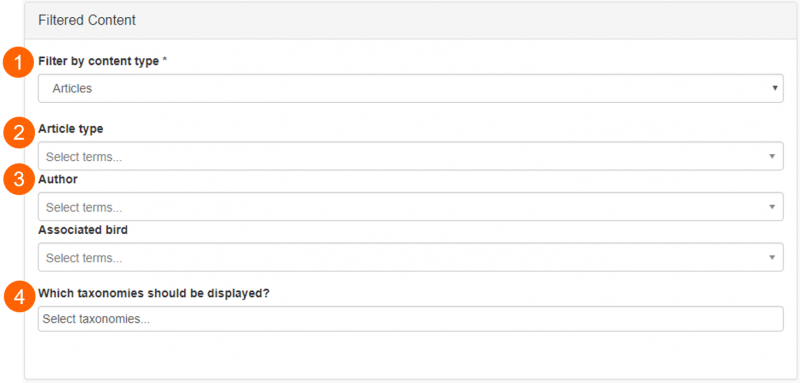
- Filter by content type (1). Pages belonging to the selected content type will be displayed in the listing
- Filter by content sub-type (visible once content type is selected) (2). Pages belonging to the selected content subtype will be displayed in the listing
- Taxonomies associated with the selected content type (3). Pages with the selected taxonomy terms associated with them will be displayed in the listing. One term can be selected per taxonomy
- Choose to display taxonomy filters to end users (4). Taxonomy filters can be displayed to end users (e.g. below), for them to use the listed pages' associated taxonomy terms to filter for topics of interest
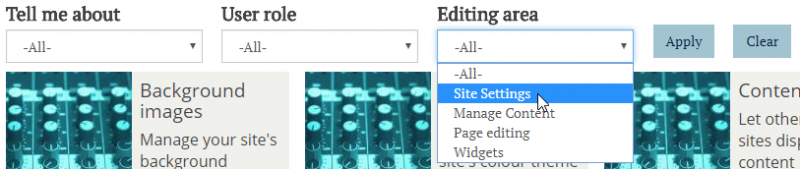
Output on a Mosaic site: Taxonomy filters displayed above a Grid listing
If you insert a listing widget on an Events page, for example, and select Filtered as the content source, you have the option to exclude the Events page which will host the listing widget from the displayed items. Select the check-box called Exclude current item:

The order of items displayed in widgets using the Filtered content source can be managed using the Sorting options.
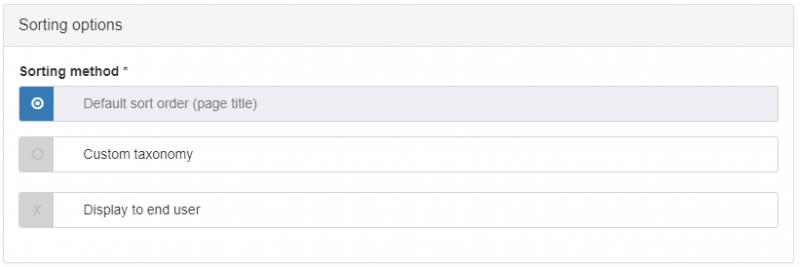
Sorting options for Filtered content
Default sort order and displaying sort order to end users
Default sort order sorts the items in the widget alphanumerically according to: page title (for Page content); publication date (for Article content); event date (for Event content); sort name (for Person content).
The 'Display to end user' checkbox controls the display of a dropdown filter to users. When enabled, the filter can be used to toggle the default sort order between ascending and descending order.
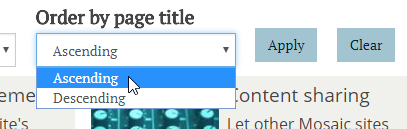
Output on a Mosaic site: Default sort order displayed to end user
Sorting by custom taxonomy
If taxonomy terms are applied to content listed in the widget, and Custom Taxonomy is selected as the sorting option, the items will be sorted by alphanumerical order of the taxonomy terms. Pages without custom taxonomy terms will have their listing items shown at the end of the list.
Note: If you manually change the order of a custom taxonomy then that will not impact the sorting. Hence custom taxonomies that are created for the purpose of ordering the items in listings need to use prefixes like A, B, C on the terms to make them order correctly.